Set up nobardak in two steps: allow access to Apple Reminders and install the Shortcuts automation. After that, new reminders come back with the answer on their own.
Allow Reminders access
nobardak reads and edits Apple Reminders. When the app asks, allow access.
Set up the Shortcuts automation
During setup, install the included Shortcut and add at least one automation to it. The automation runs nobardak in the background. Without it, nobardak runs when you open the app.
Clean up existing reminders
Clean up to 10 existing reminders once during setup. They don't count against your monthly limit.
Keep using Reminders
Add reminders as usual. The next run picks up new and changed reminders, including the ones you added while the app was closed.
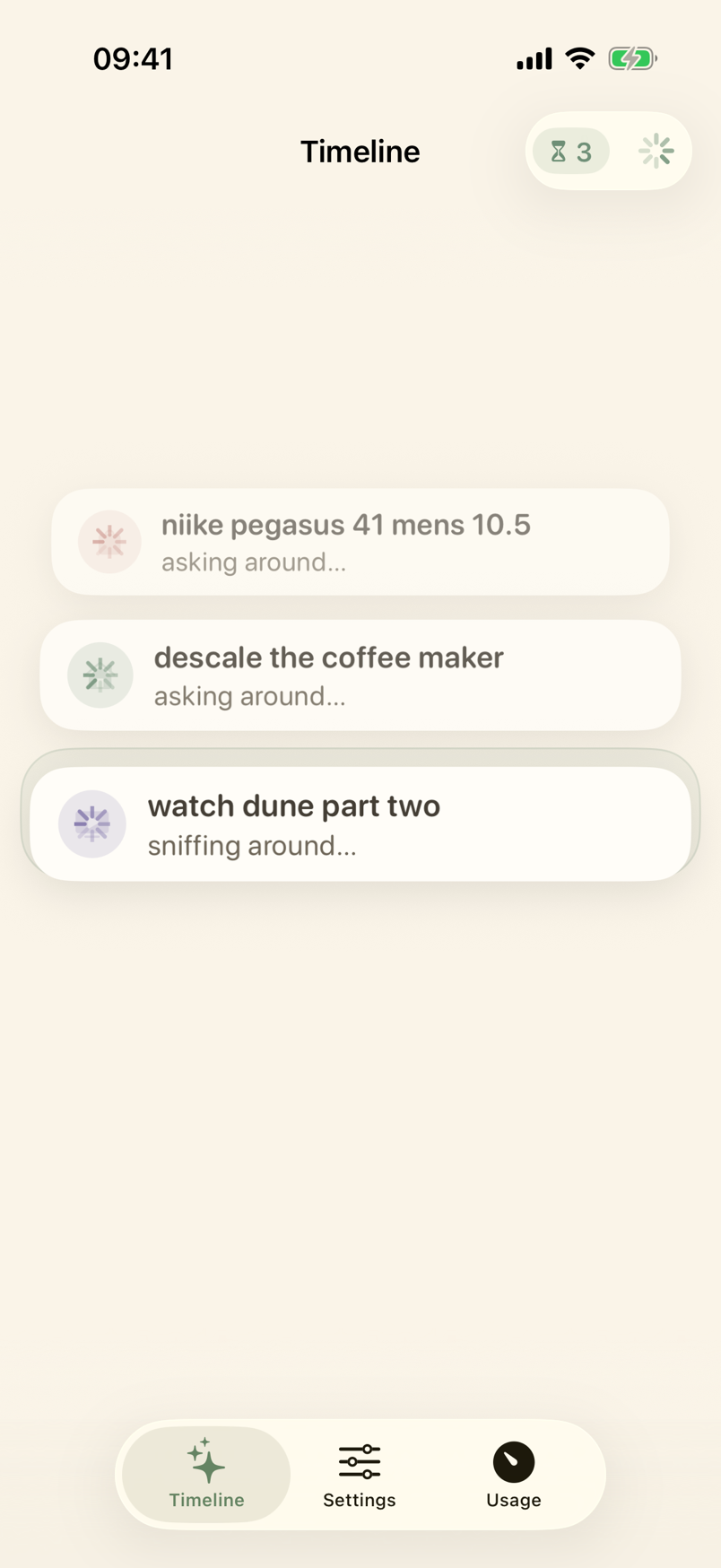
A run takes a few minutes. The Timeline shows a card for each reminder nobardak is working on.
See How nobardak works for what it brings back.